If you have any questions about our product, I’d be happy to chat!

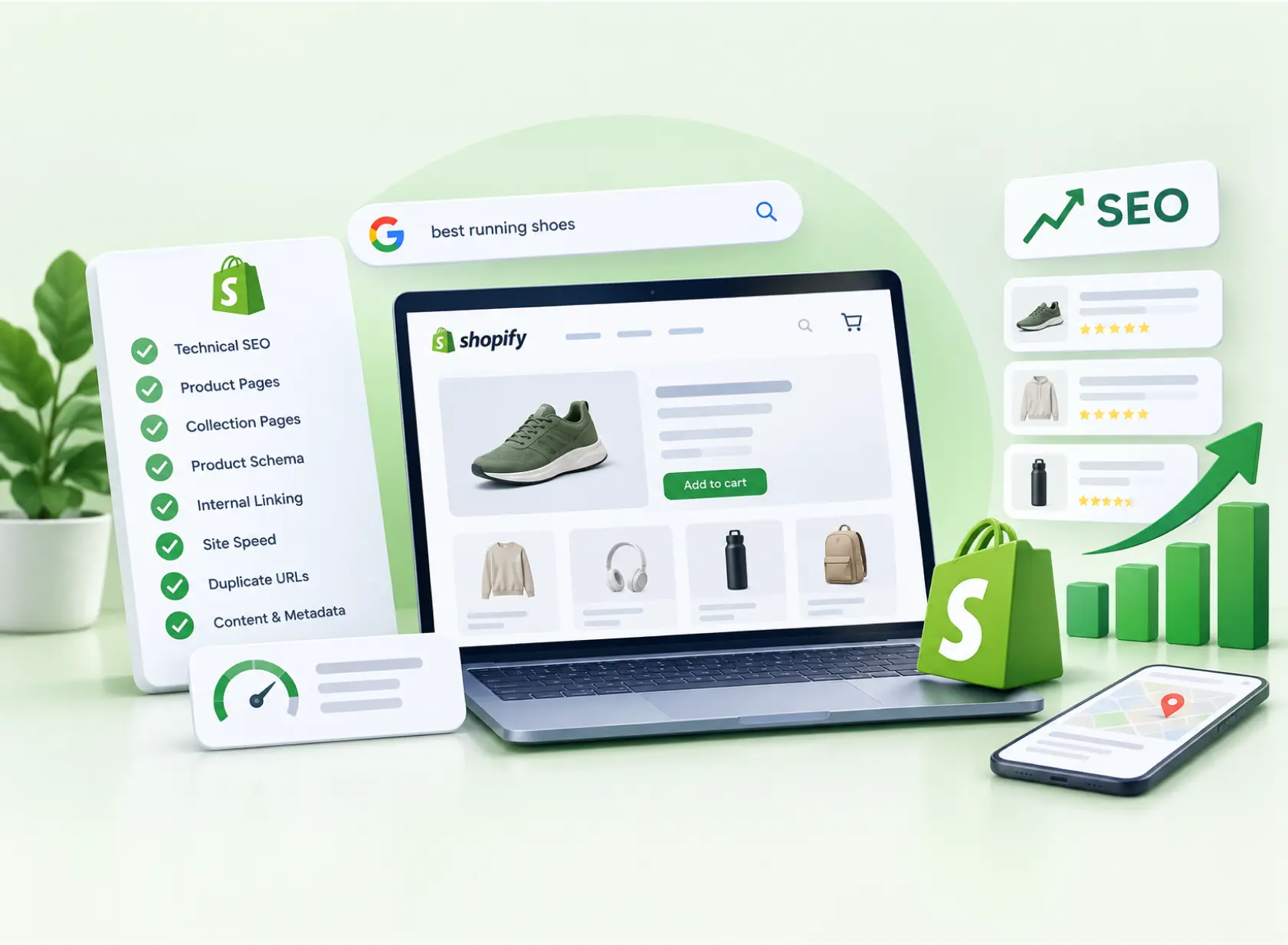
A Shopify SEO checklist fixes the technical, content, and product data issues that keep Shopify stores from ranking and earning organic revenue. Today, organic sales come from more than the blue links. Your products can appear for free in Google’s Shopping tab, in Google Images and Lens, and in AI shopping answers from ChatGPT and Google AI Mode. Each of those surfaces depends on clean pages and clean product data. Shopify handles a lot automatically, but it also creates problems most store owners never see, like duplicate product URLs, leftover code from deleted apps, and thin collection pages. This checklist gives you 25 fixes in priority order, a “start here” plan by store size, and copy templates you can use today.
Yes. Shopify gives every store a solid SEO foundation, but it has platform-specific limits you need to manage.
| What Shopify handles for you | What you need to manage |
|---|---|
| SSL on every store | Duplicate product URLs created by theme links |
| Automatic XML sitemap at /sitemap.xml | Thin or empty collection pages |
| Canonical tags on product pages | App scripts and leftover app code |
| Image CDN that serves optimized formats | Titles, meta descriptions, and alt text |
| Product sync to Google through the Google & YouTube app | Product data quality (identifiers, titles, attributes) |
| Automatic hreflang tags with Shopify Markets | Fixed URL folders (/products/, /collections/, /pages/, /blogs/) |

Not every store needs the same first steps. Use this table to decide where to begin.
| Store size | Biggest risk | Start with these fixes |
|---|---|---|
| Small (under 100 products) | Thin content and weak product data | 1, 13 to 16, 20, 23 |
| Mid-size (100 to 2,000 products) | Duplicate URLs and slow templates | 2 to 4, 9 to 11, 16, 20 to 21 |
| Large (2,000+ products) | Crawl waste, pagination, and feed errors | 2 to 5, 8, 11, 19, 21 to 22 |
Set your own domain as the primary domain so all traffic, including the default myshopify.com address, points to one version of your store.
Then verify your domain in Google Search Console and submit yourdomain.com/sitemap.xml, which Shopify generates and updates automatically.
Remove the password page before launch. A password-protected store can’t be crawled, and Shopify notes it can’t collect real-user speed data either.
Shopify can load the same product at two addresses:
Shopify’s canonical tag points the second version to the first, but many themes still link to the collection-scoped version from every collection grid, using the Liquid filter within: collection. Those internal links contradict your canonical tag.
Fix: in your theme’s product card or collection template, change {{ product.url | within: collection }} to {{ product.url }}. File names vary by theme, so search your code for within: and test the change on a duplicate theme first. If you’d rather not edit Liquid yourself, our Shopify development team can make the change safely.
Check that your theme’s <head> outputs <link rel="canonical" href="{{ canonical_url }}">. Shopify’s canonical_url resolves to the preferred version of each page.
Variant links (?variant=123) should canonicalize to the main product URL. Inspect a few variant URLs to confirm this, because custom themes and apps sometimes replace the default canonical logic.
Shopify generates extra URLs for collection tags (/collections/shoes/red), sorting (?sort_by=), filters (?filter.), and internal search (/search). These pages usually duplicate collection content.
Shopify’s default robots.txt has historically blocked many of these patterns, such as sort parameters and combined tag filters, but the rules change over time. Check your live yourdomain.com/robots.txt and the “Crawled, currently not indexed” and “Duplicate” reports in Search Console. Avoid linking to tag and filter URLs from your main navigation.
Shopify lets you edit robots.txt through a robots.txt.liquid template. Keep Shopify’s default rules, add only what you need, and compare your live file before and after the change. Developers have reported that a custom template can output a slightly different rule set than Shopify’s managed default.
Remember that robots.txt controls crawling, not indexing. Use a noindex tag to keep a page out of Google.
Shopify’s folder structure is fixed, but you can edit each page’s handle. When you change one, tick the box that creates a URL redirect. For migrations or bulk changes, import redirects through a CSV file so every old URL points to its closest match.
Keep temporarily sold-out products live with clear availability messaging and a back-in-stock option. These pages may have rankings and backlinks worth keeping. For permanently discontinued products, redirect to the closest alternative or its collection.
If your theme loads products only through infinite scroll, search engines may not reach products deep in a collection. Make sure your theme also outputs standard paginated links (?page=2, ?page=3) so every product can be crawled.
Shopify’s Web Performance dashboard measures your store’s Core Web Vitals using real visitor data from the past 28 days. It rates each metric good, moderate, or poor, and marks app installs and theme updates on its timeline, so you can see which change slowed your store.
| Metric | What it measures | “Good” threshold |
|---|---|---|
| Largest Contentful Paint (LCP) | Loading speed | 2.5 seconds or less |
| Interaction to Next Paint (INP) | Responsiveness | 200 milliseconds or less |
| Cumulative Layout Shift (CLS) | Visual stability | 0.1 or less |
Prioritize your highest-traffic templates: home, collection, and product pages.
Shopify names your theme, your installed apps, and third-party code as the biggest factors in store speed. Remove apps you don’t use.
Shopify’s guide to improving store performance also warns that uninstalling an app doesn’t automatically remove its code from your theme. Search your theme for leftover snippets, or ask the app developer for removal steps.
Shopify says its free Online Store 2.0 and Horizon themes are optimized for performance. Shopify’s image CDN resizes, compresses, and serves efficient formats when your theme supports it, so you don’t need to convert every file to WebP yourself.
Upload images no larger than needed, and make sure your theme sets image dimensions so the layout doesn’t shift as images load.
| Page type | Keyword type | Example |
|---|---|---|
| Collection | Broad category terms | “women’s trail running shoes” |
| Product | Specific product terms | “waterproof trail runner women’s wide fit” |
| Blog | Questions and research terms | “how to choose trail running shoes” |
Assign one primary keyword per page so your own pages don’t compete with each other. For catalog-wide category planning, see our ecommerce and retail marketing approach.
Edit each page in the “Search engine listing” section of your Shopify admin. These patterns are a reliable starting point:
| Page type | Title template | Example |
|---|---|---|
| Product | [Product name] [key attribute] | [Brand] | Waterproof Trail Runner, Wide Fit | Northpeak |
| Collection | [Category] for [audience] | [Brand] | Trail Running Shoes for Women | Northpeak |
| Meta description | What it is + key benefit + reason to click | Lightweight waterproof trail runners built for wet Pacific Northwest trails. Free returns within 30 days. |
Keep every title and description unique across your store.
Manufacturer text appears on every store selling the same product. Write original descriptions that cover:
Start with your bestsellers and highest-margin products.
Collection pages often target your highest-value category searches, but many contain only a product grid. Add a short, useful introduction above or below the grid. For example:
Our women’s trail running shoes are built for wet, rocky trails, with waterproof uppers, aggressive tread, and wide-fit options. Compare cushioning levels below, or see our guide to choosing trail shoes.
Link to related collections and to a buying guide where one exists.
| Image type | Weak alt text | Strong alt text |
|---|---|---|
| Product photo | “shoe” | “Women’s waterproof trail runner in navy, side view” |
| Lifestyle photo | “running” | “Runner wearing navy trail shoes on a muddy forest trail” |
| Collection banner | “banner” | “Trail running shoes for women lined up on rocks” |
Name files descriptively before uploading, such as womens-waterproof-trail-runner-navy.jpg.
Each page should have one H1, usually the product or collection name. Some themes wrap logos or section titles in H1 tags, so inspect your templates and keep a logical H2 and H3 order below the main heading.
Many Shopify themes output Product structured data covering price, availability, and reviews, but implementations vary. Test product pages with Google’s Rich Results Test, and avoid running two apps or snippets that output conflicting product markup.
Google shows products from Shopify stores for free across several surfaces, not just in regular search results. According to Google’s free listings documentation for Shopify, stores using the Google & YouTube app are automatically opted in to show eligible products for free across:
To set it up:
Your product feed decides how often your products appear in free listings, and how accurately. According to Google’s documentation for the Google & YouTube app:
Shoppers increasingly ask AI tools for product recommendations. Two systems matter most for Shopify stores:
The same work that helps classic SEO helps here: complete titles, accurate attributes (size, color, material), clear descriptions, genuine reviews, and up-to-date price and stock data.
Ranking only grows revenue when visitors buy. On every product page:
Link products back to their main collection with breadcrumbs, add related-product links, and publish buying guides and how-to content that ranks for research searches product pages can’t win. Link each guide to the collection or product it discusses, and use descriptive anchor text instead of “click here.”
If you sell in multiple countries, Shopify Markets adds hreflang tags automatically and updates them when your market domains or languages change. Shopify recommends subfolders (yourstore.com/fr/) for most stores, because they share your main domain’s authority. Translate titles, descriptions, and alt text, not just product content.
| Task | Frequency |
|---|---|
| Search Console errors, Web Performance report, and Merchant Center product status | Monthly |
| App audit and leftover code check | Quarterly, and after every app change |
| Full technical crawl (duplicates, redirects, canonicals) | Quarterly |
| Collection and top product content refresh | Every six months |
The right tools make audits faster. Compare options in our guide to the best SEO audit tools.
Most Shopify stores lose rankings and sales to issues they can’t see: duplicate product URLs, leftover app code, thin collection pages, and product data errors that keep items out of free listings. Seattle PPC’s SEO team reviews your theme, speed data, content, and product feed, then prioritizes the fixes that will move organic revenue fastest. Request a free Shopify SEO audit to see where your store stands.
Data Disclaimer: Feature details in this article come from Shopify’s help center, Google Merchant Center help, Shopify developer documentation, and Google’s official blog, checked in October 2026. Core Web Vitals thresholds reflect Google’s published “good” targets. The Shopping Graph figures are Google’s own, stated in January 2026. Information about ChatGPT shopping reflects OpenAI’s March 2026 announcement as reported publicly; AI shopping features change quickly. Shopify, Google, and OpenAI update features, eligibility, and settings often, so confirm details in official documentation before making changes. Test theme edits on a duplicate theme first. Results vary by store, competition, and implementation, and no checklist can guarantee specific rankings or revenue.
Yes. Shopify includes SSL, an automatic sitemap, canonical tags, editable metadata, a fast image CDN, and product syncing to Google. Its main limits are fixed URL folders and the duplicate product URLs some themes create, both of which you can manage with this checklist.
Start with collection-scoped product URLs. In your theme, replace {{ product.url | within: collection }} with {{ product.url }}. Then confirm canonical tags, keep tag, filter, and search URLs out of your navigation, and write unique product and collection copy.
Any app that adds scripts to your storefront can affect speed, especially apps that load on every page. Check Shopify’s Web Performance report, which marks app installs on its timeline, and remove apps you don’t use. Uninstalling an app doesn’t always remove its code.
Install the Google & YouTube app, connect your Merchant Center account, and sync your products. Eligible products can then appear for free in the Shopping tab and other Google surfaces. Fix any disapproved products and keep your product data accurate.
Shopify’s agentic storefronts make eligible product data available to supported AI channels, including ChatGPT, through Shopify Catalog. Check your agentic storefront settings in your Shopify admin, and keep product titles, attributes, and descriptions complete and accurate.
Yes. Add a robots.txt.liquid template in your theme code. Keep Shopify’s default rules, compare your live file before and after editing, and use noindex tags rather than robots.txt to keep pages out of Google’s index.
It varies. Technical and product data fixes can take effect within weeks of Google recrawling your store, while content and authority improvements usually take months. Your timeline depends on competition, site history, and consistency.
Actionable insights, strategies, and updates to help B2B businesses grow through SEO and performance marketing.




We’d love to hear from you. Fill out the form and let’s start building something amazing together.


 SEO